
How setting up a self-hosted AI stack turned into a crash course in Docker networking, zero-trust security, and why simple solutions beat perfect ones
There’s this moment when you’re deep into AI development where you realize you’re paying $20/month for Claude Pro, another subscription for API credits, and you’re still hitting rate limits when you need things to just work.
That was me two weeks ago, staring at yet another “rate limit exceeded” message while trying to debug a client’s automation workflow. I’d heard about Archon—a self-hosted AI stack that bundles PostgreSQL, Redis, Neo4j, Ollama, and a full MCP server into one Docker-compose setup. Perfect for running Claude Code without worrying about API quotas or subscription tiers.
“How hard could it be?” I thought. “Just spin up some containers and point Claude Code at them.”
Reader, it was not simple.
What started as “let me self-host this thing” turned into a three-day deep dive through Docker bridge networks, Cloudflare Tunnel architecture, zero-trust security models, and the surprisingly complex question: “How do containers talk to each other securely?”
Here’s how trying to give Claude Code a proper home taught me more about production infrastructure than I expected to learn.
What Archon Actually Is (And Why I Wanted It)
Before we get into the technical gauntlet, let me explain what Archon is and why it’s worth the setup pain.
Archon is a pre-configured Docker stack that gives you everything you need to run AI agents and workflows:
- PostgreSQL – Relational data storage
- Redis – Fast caching and session management
- Neo4j – Graph database for complex relationships
- Ollama – Local LLM inference
- MCP Server – Model Context Protocol endpoints
The killer feature? It’s all designed to work with Claude Code out of the box. You get the full power of Claude’s reasoning without API limits, without rate throttling, without wondering if your API key is about to hit its monthly quota.
For someone like me—building n8n automation workflows for clients that integrate with AI agents—having unlimited, predictable access to Claude’s capabilities is huge. No more “sorry, can’t test this until tomorrow when the rate limit resets.”
Plus, running it yourself means complete control over data, zero vendor lock-in, and the ability to customize the stack for specific workflows.
The plan was straightforward:
- Deploy Archon with Docker Compose
- Expose the MCP server via Cloudflare Tunnel (zero open ports, like a professional)
- Configure Claude Code to use the self-hosted endpoint
- Build unlimited AI workflows without subscription anxiety
Step 1 worked fine. Steps 2-4? That’s where things got educational.
The Foundation: Node.js and Prerequisites (The Boring But Critical Stuff)
Before I could even think about Archon, I had to get Claude Code working on my Ubuntu machine. This is the kind of setup that seems trivial until you hit version conflicts.
Problem: Claude Code requires Node.js 18+, but my system had v16 from an old project.
The amateur move: Just apt install nodejs and hope for the best.
The professional move: Use nvm (Node Version Manager) so you can switch between versions without breaking existing projects.
# Install nvm
curl -o- https://raw.githubusercontent.com/nvm-sh/nvm/v0.39.0/install.sh | bash

# Install Node 18
nvm install 18
nvm use 18
nvm alias default 18

# Verify
node --version  # Should show v18.x.x
This took 5 minutes but saved me from future Node version hell. If you’re doing any serious development work, stop reading right now and install nvm if you haven’t already.
With Node sorted, Claude Code installation was straightforward:
npm install -g @anthropics/claude-code
claude --version
Worked perfectly. Now for the hard part.
Problem #1: Docker Networking Is Actually Complicated
Here’s where my “this should be simple” confidence started cracking.
I cloned the Archon repo, ran docker-compose up, and everything started successfully. Containers running, logs looking healthy, services responding on their internal ports. Great.
Then I tried to access the Archon MCP server from Claude Code on my local machine.
Nothing. Connection refused. Timeout. The server was running, but completely unreachable.
The Revelation: User-Defined Bridge Networks
This is where I learned something fundamental about Docker networking that I’d been hand-waving away for years.
The problem: Docker’s default bridge network doesn’t do automatic service discovery. Containers can talk to each other via IP addresses, but those IPs change on every restart. You can’t reliably connect to a container that might have IP 172.17.0.3 today and 172.17.0.5 tomorrow.
The solution: User-defined bridge networks with automatic DNS.
I created a custom network called ai-net:
docker network create ai-net
Then modified both docker-compose files (the infrastructure stack with Cloudflare, and the Archon application stack) to use this network:
# In both docker-compose.yml files
networks:
  ai-net:
    external: true
And attached every container to it:
services:
  Archon-MCP:
    container_name: Archon-MCP
    networks:
      - ai-net
    # ... rest of config
Here’s the magic part: Once containers are on the same user-defined bridge network, Docker automatically registers their container_name as a resolvable hostname.
This means the cloudflared container (my ingress controller) could reach the MCP server using http://Archon-MCP:8051—not an IP address, not localhost, just the container name. Docker’s embedded DNS service handles the rest.
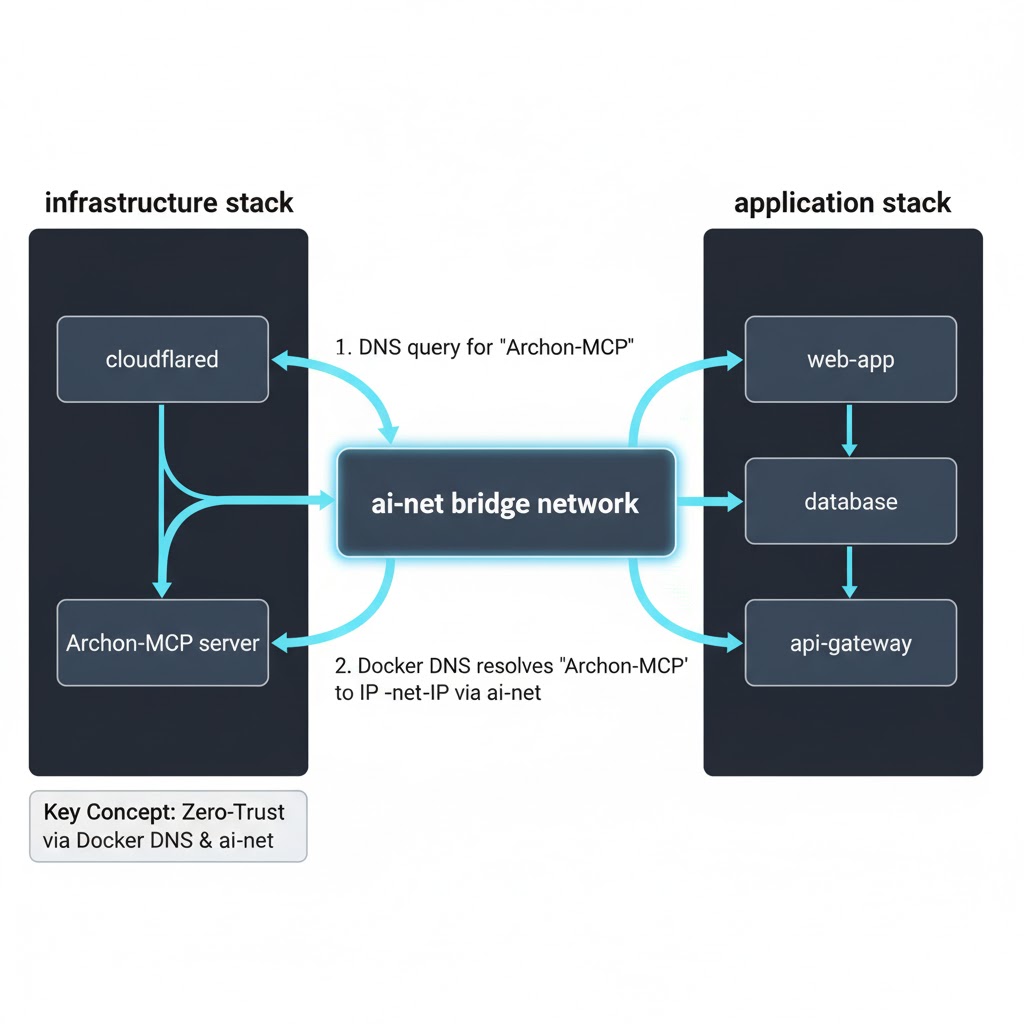
What I learned: If you’re running multi-service Docker stacks, create a user-defined bridge network first. Container communication becomes predictable, configurations don’t break on restarts, and service discovery “just works.”
This single change fixed about 60% of my connectivity problems.
Problem #2: The Security Model Paradox
With containers able to talk to each other, I needed to expose the MCP server externally so Claude Code could reach it. But I had a non-negotiable constraint: no open firewall ports.
I refuse to expose services directly on public IPs. It’s 2025—we have better options. My entire setup runs behind Cloudflare Tunnel, which maintains an outbound-only connection from my server to Cloudflare’s edge. Zero inbound ports, zero attack surface.
Setting up the tunnel was easy:
docker compose up cloudflared
Cloudflare connected, the tunnel showed as healthy in my dashboard, and I configured a public hostname: archon-mcp.logicweave.ai → http://Archon-MCP:8051.
Tested it with curl. Perfect. The MCP server was now publicly accessible through the tunnel.
Then I tried to secure it.
The Identity-Based Authentication Disaster
My first instinct was to use Cloudflare Access with identity-based authentication—the “right” way to do things. Require a login via Cloudflare, issue a JWT token, verify that token on every request. Standard zero-trust architecture.
I configured an Access policy, set it to require email authentication, and immediately hit a wall when testing with Claude Code:
Error: Unexpected content type: text/html
Expected: application/json
What was happening: Claude Code sent an API request to the MCP endpoint. Cloudflare intercepted it and returned an HTML login page. The CLI tool, expecting JSON, choked.
“No problem,” I thought. “Cloudflare has automatic authentication for CLI tools.”
I enabled the Allow automatic Cloudflared authentication setting and installed cloudflared on my local machine:
cloudflared access login https://archon-mcp.logicweave.ai
This generated a JWT token and stored it locally. Perfect. Now CLI tools can include the token automatically, right?
Wrong.
Claude Code has no idea this token exists. It doesn’t check ~/.cloudflared/ for credentials. It’s just a CLI tool making HTTP requests—it doesn’t integrate with Cloudflare’s authentication flow.
The TCP Proxy Workaround I Rejected
Cloudflare’s official solution for this scenario is to run a local TCP proxy:
# Start a local proxy that attaches the auth token
cloudflared access tcp --hostname archon-mcp.logicweave.ai --url localhost:9000

# Configure your app to talk to localhost:9000 instead of the real hostname
This works. The proxy runs locally, intercepts traffic to localhost:9000, attaches the JWT token, and forwards the request through the tunnel.
But it’s terrible UX.
Every developer who wants to use Claude Code with my self-hosted instance would need to:
- Install cloudflared locally
- Authenticate once with their email
- Start the TCP proxy before using Claude Code
- Remember to keep it running
- Configure their .mcp.json to point to localhost instead of the real hostname
For a tool I’m trying to make easier to use, this felt completely backwards.
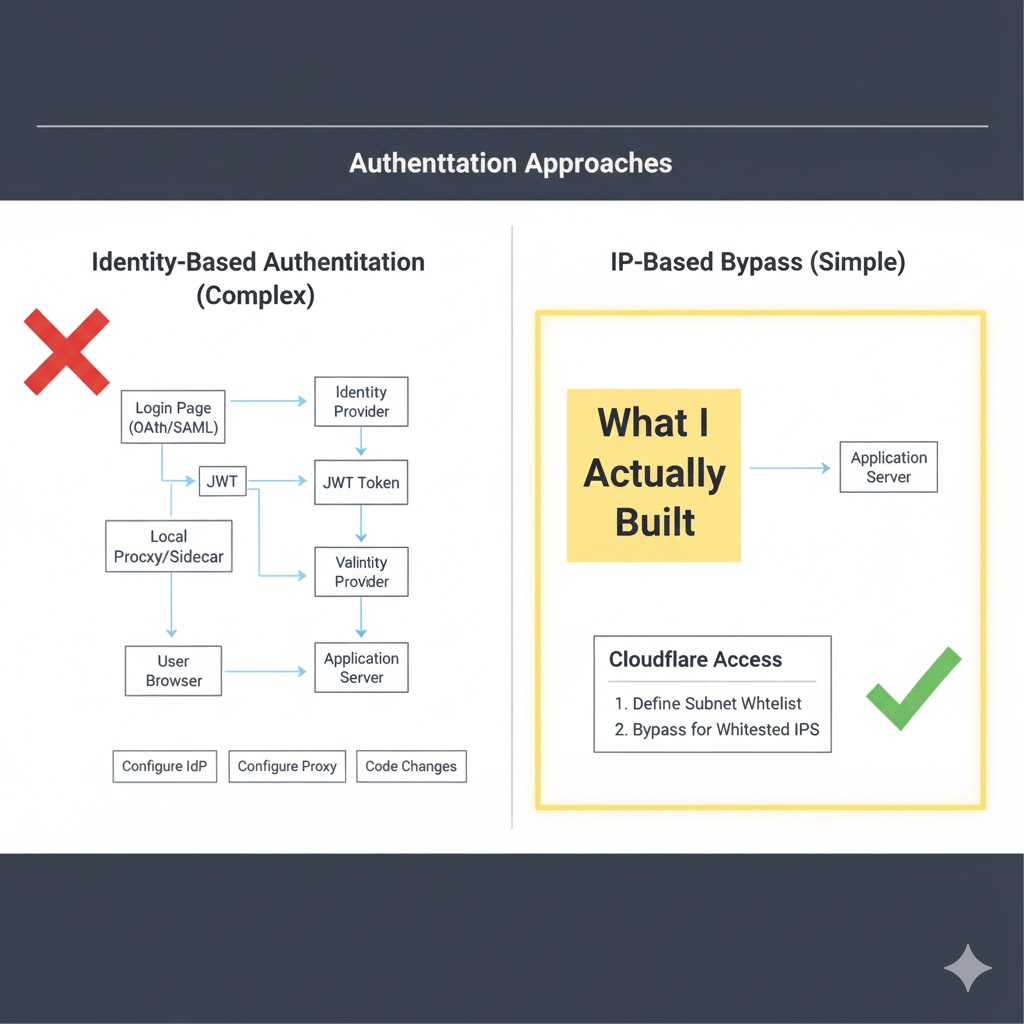
The Pragmatic Solution: IP-Based Bypass
I stepped back and asked: “What problem am I actually trying to solve?”
Answer: I want to ensure only I can access the MCP server. I don’t need to verify my identity—I just need to verify I’m connecting from a trusted location.
This is where Cloudflare’s Bypass policy saved me.
Instead of requiring identity authentication, I configured an Access policy that checks the source IP address:
- Policy Type: Bypass
- Include: IP Ranges →
[my home IP],[my VPN IP],[my mobile hotspot IP] - Action: Skip all authentication if the request comes from these IPs
Here’s why this works perfectly:
- Zero client-side friction – Claude Code just works. No tokens, no proxy, no special configuration.
- Same security guarantees – The tunnel is encrypted. Cloudflare checks the source IP at the edge. If you’re not on the whitelist, you get a 403 Forbidden. No login page, no attack surface.
- Default deny – Any request from an IP not on the list is immediately rejected. The server remains completely invisible to the public internet.
For my use case (single developer, known locations, CLI tool without auth support), this is actually more secure than the identity flow because there’s nothing to exploit. No login page to probe, no JWT tokens to steal, no session cookies to hijack.
What I learned: Sometimes the “correct” solution isn’t the practical one. Zero-trust security doesn’t always mean identity authentication—it means only trusted sources can connect. Network-based access control can be simpler and just as secure when the constraints fit.
Problem #3: The PostgreSQL Connection Maze
With networking and security sorted, I moved on to configuring Archon’s database. The MCP server needed to connect to PostgreSQL to store conversation history, sessions, and agent state.
The documentation showed this environment variable:
DATABASE_URL: postgresql://postgres:password@postgres:5432/archon
Simple enough. I added it to my docker-compose file and restarted the containers.
The MCP server immediately crashed.
Logs showed:
Error: connect ECONNREFUSED 172.17.0.2:5432
Error: getaddrinfo ENOTFOUND postgres
Wait, what? The connection string says to connect to postgres:5432, but the error is trying to connect to a random IP and then saying the postgres hostname doesn’t exist.
The Environment Variable Hell
After an hour of debugging, I discovered the problem: environment variable precedence.
Archon’s MCP server was ignoring my DATABASE_URL entirely and using a default value compiled into the application. That default was trying to connect to localhost:5432, which obviously didn’t work inside a container.
I needed to explicitly override every database-related environment variable:
environment:
  DATABASE_HOST: postgres
  DATABASE_PORT: 5432
  DATABASE_NAME: archon
  DATABASE_USER: postgres
  DATABASE_PASSWORD: ${POSTGRES_PASSWORD}
  DATABASE_URL: postgresql://postgres:${POSTGRES_PASSWORD}@postgres:5432/archon
And here’s the critical part: I had to make sure the PostgreSQL container had the container_name: postgres and was on the same ai-net network. Otherwise, Docker’s DNS wouldn’t resolve the hostname.
After this change, the MCP server connected perfectly.
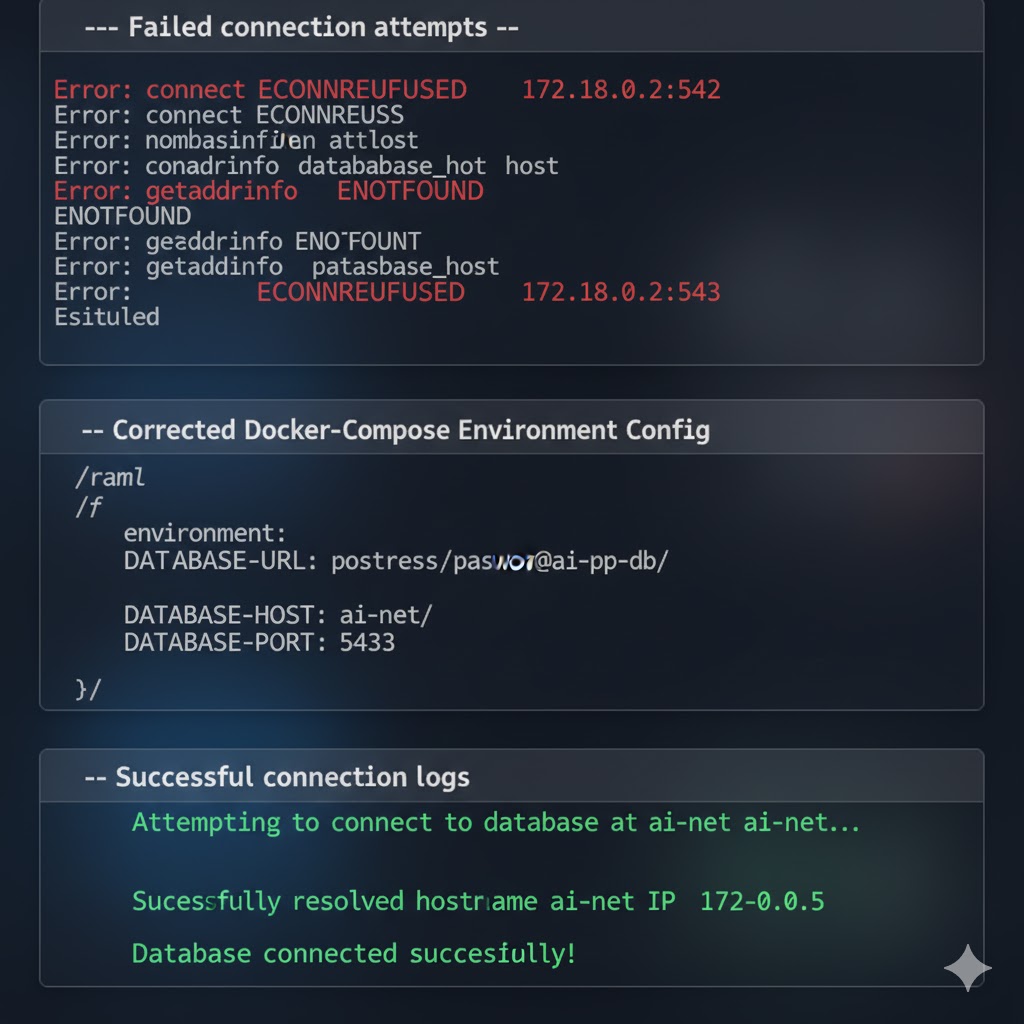
What I learned: When Docker containers can’t connect to each other, check three things in order:
- Are they on the same user-defined network?
- Does the target container have a
container_nameset? - Are you using that exact container name in the connection string?
Don’t trust defaults. Explicitly set everything.
Problem #4: Client Configuration and URL Mysteries
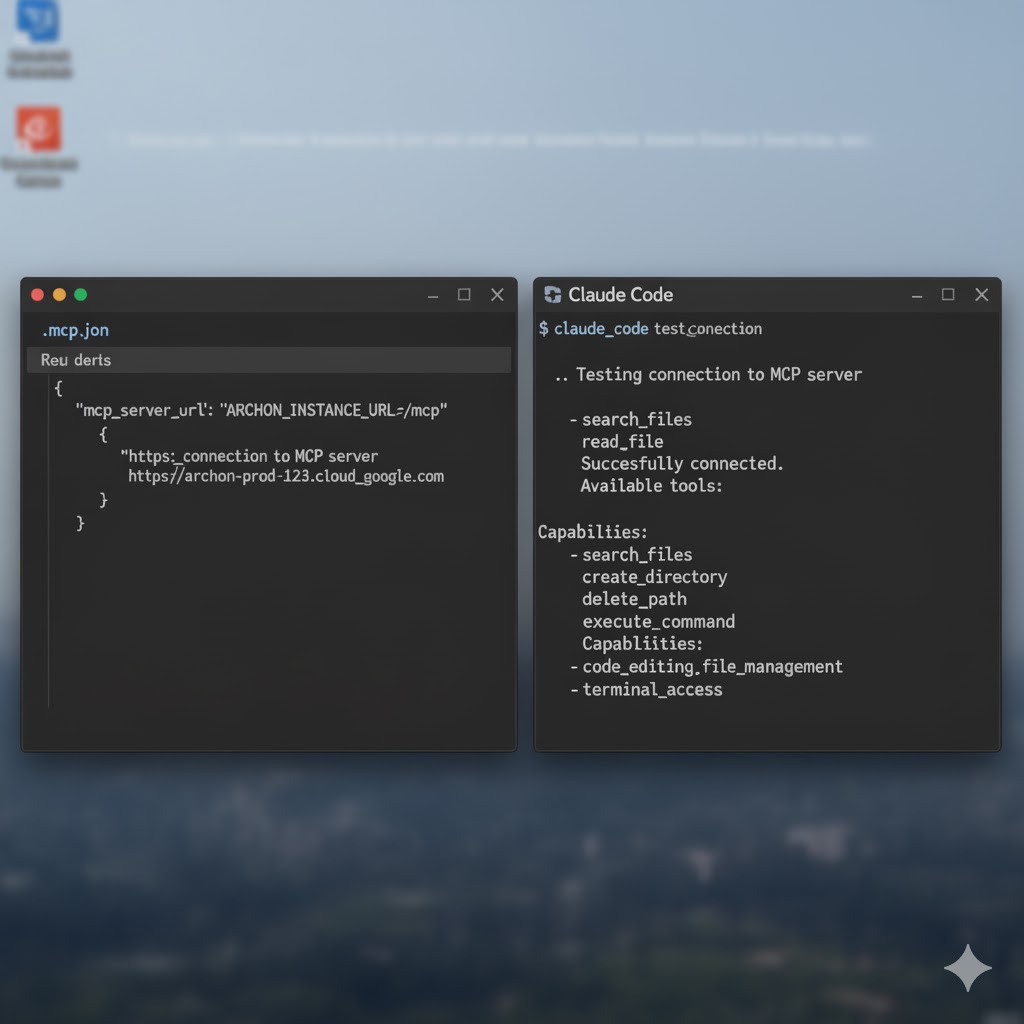
The final piece was configuring Claude Code itself to use my self-hosted MCP server instead of Anthropic’s cloud endpoints.
Claude Code uses a .mcp.json file for MCP server configuration:
{
  "mcpServers": {
    "archon": {
      "url": "https://archon-mcp.logicweave.ai"
    }
  }
}
I tried this first version. Failed immediately with:
Error: 404 Not Found
The URL needed the full application path:
{
  "mcpServers": {
    "archon": {
      "url": "https://archon-mcp.logicweave.ai/mcp"
    }
  }
}
That worked. Then I tested from a different network location and got:
Error: Connection refused
Ah, right—I forgot to add that IP to the Cloudflare Access bypass policy. Added it, tested again, perfect.
But here’s the detail that took 30 minutes to figure out: The URL must use https, not http, and must not include the internal port number (:8051).
Wrong:
http://archon-mcp.logicweave.ai/mcp❌ (uses http)https://archon-mcp.logicweave.ai:8051/mcp❌ (includes internal port)https://archon-mcp.logicweave.ai❌ (missing /mcp path)
Right:
https://archon-mcp.logicweave.ai/mcp✅
The tunnel handles HTTPS termination at the edge, and the internal port is completely abstracted away. Claude Code only sees the public-facing hostname.
What Actually Works in Production
After three days of fighting Docker networking, security models, database connections, and URL formatting, here’s the final architecture that actually runs reliably:
Infrastructure Stack (runs first):
# docker-compose-infra.yml
services:
  cloudflared:
    container_name: cloudflared
    image: cloudflare/cloudflared
    command: tunnel run
    networks:
      - ai-net
    environment:
      - TUNNEL_TOKEN=${CF_TUNNEL_TOKEN}

networks:
  ai-net:
    external: true
Application Stack (runs second):
# docker-compose.yml
services:
  postgres:
    container_name: postgres
    image: postgres:15
    networks:
      - ai-net
    environment:
      POSTGRES_PASSWORD: ${POSTGRES_PASSWORD}

  Archon-MCP:
    container_name: Archon-MCP
    image: archon/mcp-server
    networks:
      - ai-net
    environment:
      DATABASE_HOST: postgres
      DATABASE_PORT: 5432
      DATABASE_NAME: archon
      DATABASE_USER: postgres
      DATABASE_PASSWORD: ${POSTGRES_PASSWORD}

networks:
  ai-net:
    external: true
Cloudflare Configuration:
- Public hostname:
archon-mcp.logicweave.ai - Points to:
http://Archon-MCP:8051/mcp - Access policy: Bypass for whitelisted IPs
- Default action: Deny with 403
Client Configuration:
{
  "mcpServers": {
    "archon": {
      "url": "https://archon-mcp.logicweave.ai/mcp"
    }
  }
}
This setup gives me:
- ✅ Zero open firewall ports
- ✅ Encrypted traffic end-to-end
- ✅ Automatic container DNS resolution
- ✅ No client-side proxy or auth hassle
- ✅ Default-deny security posture
- ✅ Unlimited Claude Code usage without API quotas
The Real Lessons Nobody Warns You About
1. User-defined bridge networks are not optional
If you’re running multi-container Docker applications, stop using the default bridge network. Create a custom one, give your containers explicit names, and let Docker DNS handle service discovery. This one change eliminates an entire category of “why can’t my containers talk to each other” problems.
2. Zero-trust doesn’t mean complex
I wasted a full day trying to implement identity-based authentication before realizing it was solving the wrong problem. Zero-trust is about access control, not necessarily identity verification. If you can achieve the same security with simpler mechanisms (IP whitelisting, network segmentation), do it.
3. Client constraints drive architecture decisions
The “correct” security model (Cloudflare’s identity flow) was unusable because Claude Code doesn’t support it. Understanding the limitations of your client tools early saves you from building elaborate solutions that don’t actually work in practice.
4. Environment variables are lies
Never trust that an application will actually use the environment variable you set. Always verify connection strings, always explicitly set every related variable, and always check the logs to see what values the application is actually trying to use.
5. The path matters more than you think
That /mcp at the end of the URL? Cost me 30 minutes of debugging. Read the API documentation carefully—not just the server configuration, but the actual endpoint paths the server expects.
What This Setup Actually Enables
Now that Archon is running reliably, here’s what changed for my client work:
Unlimited experimentation – I can test n8n workflows that call Claude hundreds of times without worrying about API rate limits or burning through credits.
Cost predictability – My server costs $40/month for the droplet. Compare that to Claude API usage for heavy automation work.
Custom tooling – Because I control the MCP server, I can add custom tools and capabilities specific to my client workflows without waiting for Anthropic to support them.
Data ownership – All conversation history, agent state, and workflow data stays on my infrastructure. Critical for clients with strict data policies.
Learning environment – I can break things, test edge cases, and learn how AI agents work at the infrastructure level without consequences.
The setup pain was worth it. Three days of Docker networking hell gave me a production-grade AI development environment that I fully control.
For My Fellow n8n Users (And Anyone Building AI Workflows)
If you’re building automation solutions with n8n and AI agents, this architecture pattern is solid:
n8n for orchestration – Handle the complex API calls, data transformations, and business logic.
Archon for AI reasoning – Let Claude handle the natural language understanding, decision-making, and complex reasoning.
PostgreSQL for state – Store workflow results, conversation history, and agent memory in a real database with ACID guarantees.
Cloudflare for security – Zero-trust ingress with IP-based access control and no open ports.
I’ve tested this with customer support agents that use n8n to fetch CRM data and Archon to generate personalized responses. The combination is powerful because each tool does what it’s best at.
The Bigger Picture: Self-Hosting in 2025
This project reinforced something I keep learning: self-hosting is still worth it for production workloads.
Yes, managed services are easier. Yes, cloud APIs are convenient. But when you need:
- Predictable costs at scale
- Complete data ownership
- Ability to customize and extend
- Freedom from vendor API changes and rate limits
…then running your own infrastructure makes sense. The upfront setup cost (those three days of debugging) pays dividends every time you don’t hit an API quota or wonder why a vendor changed their pricing model.
Archon gave me a crash course in Docker networking, zero-trust security, and the practical constraints of CLI tools. It also gave me unlimited access to Claude’s capabilities for a fixed monthly infrastructure cost.
Worth every minute of debugging.
Try It Yourself (Or Learn from My Mistakes)
If you’re considering self-hosting Archon or any similar AI stack:
Start with user-defined Docker networks – Create that ai-net network before deploying anything.
Understand your security model early – Figure out how your client will authenticate before building the entire security layer.
Expect database connection pain – Always explicitly set all environment variables and verify container networking.
Test the full stack incrementally – Get containers talking locally before adding tunnels and authentication.
Document your IP addresses – If you’re using IP-based access control, keep a list of trusted IPs handy.
Have you self-hosted AI infrastructure? What was your biggest setup challenge? I’m always curious to hear about other people’s Docker networking disasters and zero-trust security adventures.
Building production AI systems in 2025 means understanding the infrastructure layer. Sometimes the hard way is the only way to really learn.