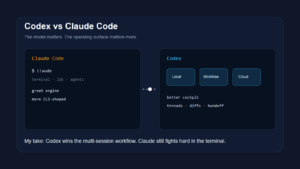
I’ve been using Claude Code for everything — client projects, infrastructure, n8n workflows, content systems. But there was one gap that kept nagging at me: Google Workspace.
My Drive, Gmail, Calendar, Docs, Sheets — all sitting behind a wall that Claude couldn’t touch. Every time I needed context from a Google Doc, I’d open a browser tab, copy-paste the content, and feed it back to Claude manually. It worked, but it was the kind of friction that compounds fast when you’re deep in a build.
I wanted Claude to just do it. Search my Drive. Pull up a doc. Check my calendar. No copy-pasting, no context switching.
There are MCP servers that connect Claude to Google Workspace. I tried them. They’d choke on file types, couldn’t navigate into nested folders, and fell apart the moment you needed anything beyond the most basic API calls. Technically connected, practically useless.
The Tool That Made It Click
The key piece is Google Workspace CLI (gws) — an open-source, Rust-based CLI from Google. Instead of wiring up individual APIs or building custom integrations, gws uses Google’s Discovery Service at runtime to automatically expose every available Workspace API. Structured JSON output, auto-pagination, and 90+ agent skill files that describe each API’s commands and patterns. It handles the file type and folder navigation issues that made those MCP servers unusable.
Source: github.com
Purpose-built for both humans and AI agents. That last part is what caught my attention.
Project-Scoped Setup
I wanted everything scoped to one project. No global installs polluting other environments.
mkdir PersonalAIssistant && cd PersonalAIssistant
npm init -y
npm install @googleworkspace/cli
This drops gws into node_modules/.bin/ locally. Critical detail: you must use npx gws instead of gws directly, since it’s not on the global PATH. I burned 20 minutes on “command not found” before this clicked.
Authentication: Where It Gets Real
Source: Gemini Image Generation
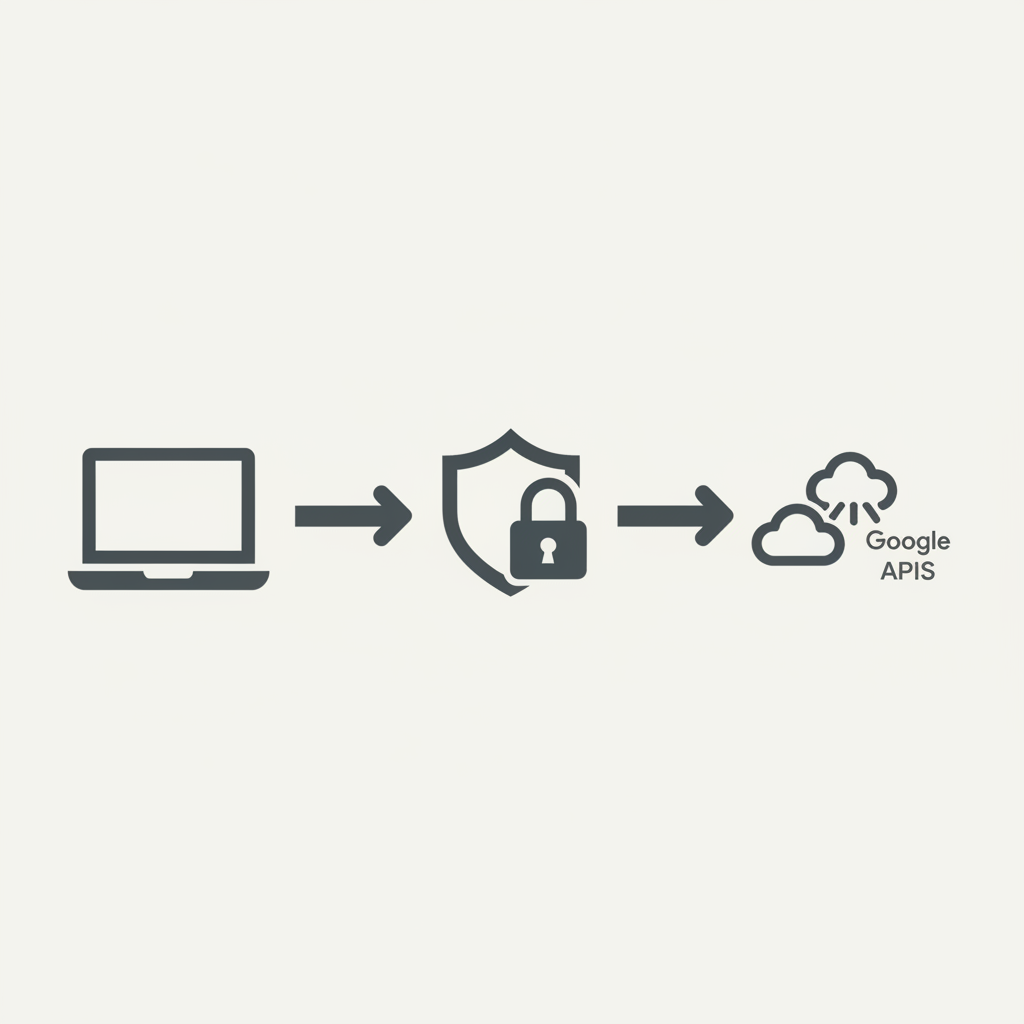
Running npx gws auth setup walks you through five steps: detecting gcloud CLI, authenticating your Google account, creating a GCP project, enabling 22 Workspace APIs, and setting up OAuth credentials.
Steps 1 through 4 went smooth. Step 5 is where I hit a wall.
You need to manually create an OAuth consent screen (External, testing mode) and then a Desktop app OAuth client in the Google Cloud Console. Copy the Client ID and Client Secret back into the gws prompt. Standard OAuth stuff, but with a catch I didn’t see coming.
The 25-Scope Limit
Unverified OAuth apps in testing mode are limited to roughly 25 scopes per authorization request. The default gws auth login tries to request 78 scopes. It fails silently — you get a 400 error with no useful message.
The fix:
npx gws auth login --scopes drive,gmail,calendar,sheets,docs,tasksFilter down to what you actually need. Tokens stack, so you can always add more scopes later with additional login calls.
Installing 90+ Agent Skills
The gws repo includes skill files that teach AI agents the exact syntax, parameters, and patterns for each Google API. Install them with:
npx skills add https://github.com/googleworkspace/cliThis clones the repo, presents an interactive skill selector, and asks which AI agents to install for. Two things went wrong here.
Symlink mode is broken. The installer offers Symlink or Copy mode. Symlink clones to a temp directory, creates symlinks, then the temp directory gets cleaned up — leaving dangling symlinks. Use Copy mode.
Wrong directory name. The installer places skills in .agents/skills/ by default. Claude Code looks for skills in .claude/skills/. Even selecting “Claude Code” in the installer didn’t fix this. Quick rename:
mv .agents .claude
Source: pinggy.io
The Instructions That Make It Work
The final piece is a CLAUDE.md file at the project root. Two instructions are non-negotiable:
CLAUDE.md
─────────────────────────────────────

1. Always use npx gws — never gws directly.

2. Before running any Google Workspace command,
   always read the relevant skill first
   (e.g., .claude/skills/gws-drive/SKILL.md).

3. Do not guess syntax.
Why “read the skill first” matters: Without that instruction, Claude will guess at gws command syntax and get it wrong every time. The skill files contain the exact API surface, parameters, and patterns. When Claude reads them before executing, it nails the syntax on the first try.
What Claude Can Actually Do Now
After setup, Claude Code can search Google Drive (including shared files), list and read Gmail, manage Calendar events, read and write Sheets, Docs, and Slides, and manage Tasks. All through natural conversation.
I asked Claude “What files are in the Community Info folder?” It loaded the gws-drive skill, searched Drive for the folder, listed its contents, and presented a formatted table of 6 documents and 1 subfolder. No browser tab. No copy-paste.
The whole system runs locally, scoped to one project, with no global installs or external services beyond Google’s own APIs.
Gotchas Worth Knowing
gws: command not found— Usenpx gws, it’s installed locally- OAuth scope error (400) — Reduce scopes to under 25 per login request
- Broken symlinks in skills — Re-install with Copy mode
- Skills in
.agents/instead of.claude/— Rename the directory - WSL2 dbus errors during
gcloud auth login— Ignore them, they’re harmless WSL noise - Drive search misses shared files — Add
sharedWithMe=trueto the query parameter
If you’re building with Claude Code and tired of the Google Workspace copy-paste loop, this setup takes about 30 minutes and changes how you work. Grab gws from GitHub and try it.
Related: How Claude Code memory compares to mem0 and the 4-agent pipeline I built on top of it.